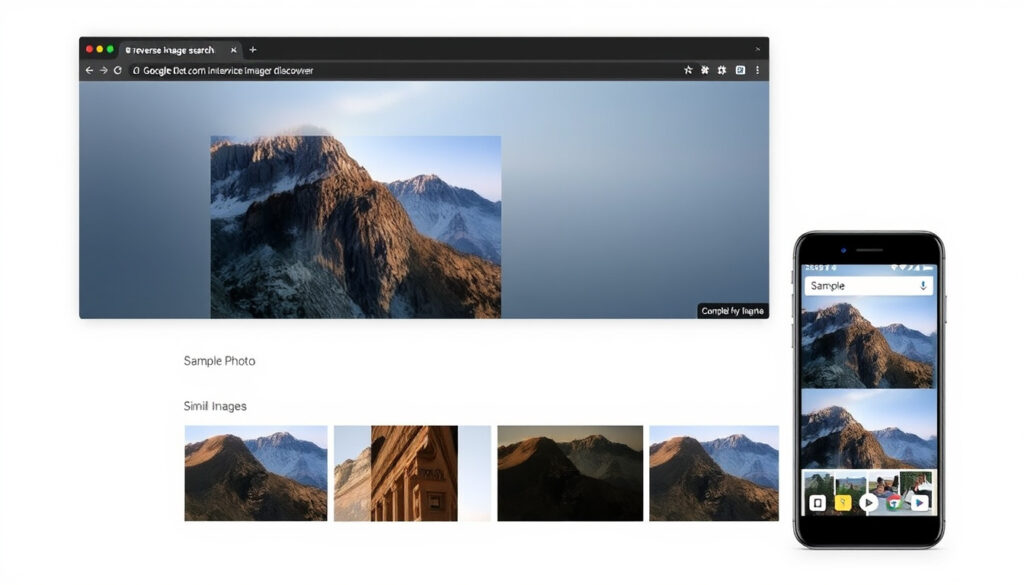
Google Image Search Reverse – How to Use on Desktop and Mobile
How Do I Perform a Reverse Image Search on Google?
Reverse image search on Google allows anyone to start with a picture instead of words. Instead of typing keywords, users upload an image, paste a web address, or use Google Lens to find visually similar content across the internet. The system analyzes visual elements like shapes, colors, textures, and patterns, then matches them against billions of indexed web pages to identify where the image appears, find higher-resolution versions, or discover related content. This capability has become essential for verifying sources, tracking down image origins, identifying products or locations, and combating misinformation online.
images.google.com or Google Lens icon
Upload file, paste URL, or drag-and-drop
Desktop browsers, Android, and iOS
Similar images, source websites, contextual details
Key Insights for Effective Searching
- Higher resolution images generally produce more accurate matches and better results
- Chrome users can right-click any image on a webpage and select “Search image with Google” for instant results
- The service works without requiring a Google account on desktop browsers
- Google Lens integrates directly into the search experience on mobile devices
- Results display the original image at the top, followed by visually similar images and pages containing it
- Both cropped sections and full images can be searched effectively
- File size is limited to 5MB, with support for JPG, PNG, BMP, and WebP formats
| Feature | Details |
|---|---|
| Launched | 2011 as part of Google Images |
| Primary Tool | Google Lens (AI-powered analysis) |
| Cost | Free, no account required on desktop |
| File Size Limit | 5 megabytes maximum |
| Supported Formats | JPG, PNG, BMP, WebP |
| Mobile Integration | Built into Google app and Chrome |
Bookmarking images.google.com provides instant access to the reverse image search interface from any device, bypassing the need to navigate through Google’s main search page first.
How to Do Reverse Image Search on Google Mobile and Desktop?
The process differs slightly between desktop and mobile devices, though both deliver comparable results. Desktop searching offers precise control through browser-based uploads, while mobile devices leverage camera integration and touch gestures for a streamlined experience.
Searching on Desktop Computers
Desktop users have multiple pathways to initiate a reverse image search. The most direct route involves navigating to images.google.com and clicking the camera icon located in the search bar. From there, users can either upload an image file directly from their computer or paste a URL pointing to an image hosted online.
For those who already have an image open in their browser, Chrome provides a convenient shortcut. Right-clicking any image reveals the option “Search image with Google,” which instantly opens the Lens sidebar with results. This method works particularly well when browsing websites and wanting to identify an unfamiliar product, person, or location captured in a photograph.
Drag-and-drop functionality offers another efficient approach. Users can drag an image file directly onto the Google Images page, and the search initiates automatically without additional navigation steps.
Searching on Mobile Devices
Mobile reverse image searching relies primarily on the Google Lens functionality built into both the Google app and Chrome browser. On Android and iPhone devices, the process begins by opening the Google app and tapping the Lens icon (represented by a camera symbol) within the search bar.
From there, users can either photograph something new using their device camera or select an existing image from their photo gallery. The Lens interface allows focusing on specific portions of an image by dragging borders, which proves useful when searching within larger photographs containing multiple subjects.
Chrome mobile users enjoy similar convenience through long-press gestures. Holding down on any image within a webpage presents options to “Search Google for this image” or “Search image with Google Lens,” immediately displaying results.
iPhone-Specific Considerations
iPhone users find that the steps closely mirror Android functionality. The Google app provides Lens access through its camera icon, allowing photo uploads or camera captures. Both Safari and Chrome browsers support long-press image gestures, and the Lens icon remains accessible within image search results. Granting camera and photo library permissions when prompted ensures smooth operation across all methods.
The Google Lens mobile experience goes beyond simple image matching by offering real-time object recognition, text translation overlaid on images, and shopping information where applicable. These features extend reverse image search capabilities into practical daily applications like translating foreign language signage or identifying plants and animals.
Why Is Google Reverse Image Search Not Working and How Accurate Is It?
Several factors can prevent reverse image search from functioning as expected. Understanding common issues and their solutions helps users achieve better success rates when searching for image matches.
Troubleshooting Common Problems
File format incompatibility ranks among the most frequent obstacles. The service accepts JPG, PNG, BMP, and WebP files exclusively; other formats require conversion before uploading. Users should verify their image format and use free online converters if necessary.
Internet connectivity problems can interrupt the search process entirely. Since Google’s algorithms compare uploaded images against their indexed database, a stable connection proves essential for successful processing. Switching between Wi-Fi and mobile data may resolve intermittent connectivity issues.
Outdated applications frequently cause functionality problems. Ensuring the Google app and Chrome browser run their latest versions eliminates known bugs and performance issues. App store updates regularly include improvements to image recognition capabilities.
Permission denials on mobile devices prevent camera and storage access required for image handling. Users should check their device settings to confirm both camera and photo library permissions are granted to the Google app and Chrome.
When Lens remains unavailable or unresponsive, navigating directly to images.google.com through the mobile browser provides a reliable fallback alternative. Private or incognito browsing modes can also resolve issues stemming from cached data or temporary glitches.
Retry failed uploads or URL submissions if timeouts occur. Persistent problems may require clearing browser cache or app data. Heavily compressed or heavily edited images may yield fewer matches since the visual fingerprint has been significantly altered from the original.
Understanding Result Accuracy
Google’s reverse image search excels at identifying visual matches and tracing images back to their original web sources. The system draws from an extensive indexed database, making it particularly effective for finding where images have appeared online, discovering higher-resolution versions, and identifying similar photographs.
However, the service has documented limitations. Images that have never been indexed, significantly edited, or exist only behind paywalls may return no results. AI-generated images present particular challenges, as they lack the photographic history that underpins matching algorithms.
Supplemental tools like Gemini can provide additional context for images, though these AI-powered alternatives carry risks of generating inaccurate information. Cross-referencing results through multiple search methods helps verify findings when accuracy matters significantly.
For important fact-checking or copyright verification work, combine Google reverse image search with direct manual investigation. Confirming source websites independently and examining surrounding context provides more reliable conclusions than relying solely on automated matching.
What Is Google Reverse Image Search and How Does It Compare to Alternatives?
Google reverse image search represents one of several approaches to finding information starting from pictures rather than text. Each platform offers distinct strengths, and understanding these differences helps users select the most appropriate tool for their specific needs.
Feature Comparison Across Platforms
| Feature | Google Reverse Image | Bing Visual Search | Gemini (Google AI) |
|---|---|---|---|
| Upload Image | Supported | Supported (drag/upload) | Supported with text query |
| URL Input | Supported | Supported | Not primary method |
| Mobile Lens Integration | Fully integrated | App-based only | Chat-based interface |
| Primary Strength | Vast index, visual matching | Similar results coverage | Contextual AI analysis |
The Role of Google Lens
Google Lens serves as the modern evolution of reverse image search, incorporating artificial intelligence to understand image content beyond simple visual matching. While traditional reverse image search finds where an image appears online, Lens interprets what an image depicts, enabling functionality like identifying objects, translating text, finding shopping options, and providing contextual information about landmarks or artwork.
The technology powers features like Circle to Search, which allows users to circle anything on screen to initiate a search without switching apps. This seamless integration represents Google’s direction for visual search, moving beyond pure matching toward comprehensive image understanding.
TinEye and Specialized Alternatives
TinEye takes a fundamentally different approach through digital fingerprinting rather than visual similarity analysis. This method excels at tracking exact image matches, modified versions, and instances where images have been cropped, recolored, or otherwise altered. For copyright investigators or those tracking image distribution across the web, TinEye’s exact-match capability proves more reliable than Google’s visual similarity approach.
Using multiple tools together provides the most comprehensive coverage. Combining Google’s broad visual search with TinEye’s exact matching creates a powerful verification workflow, particularly important for journalists, researchers, and content creators needing thorough image investigation.
Bing Visual Search offers comparable reverse image functionality through bing.com/images and provides slightly different result sets that can complement Google’s coverage. Gemini offers conversational AI interaction with images but should be verified through additional sources due to known hallucination risks.
How Has Google Reverse Image Search Evolved Over Time?
The capability to search using images rather than text has undergone significant transformation since its inception, with each milestone expanding what users can accomplish through visual queries.
- 2009 — Competitor TinEye launches, demonstrating market demand for reverse image capabilities and establishing early technology foundations
- 2011 — Google Images officially adds reverse image search functionality, bringing the feature to the company’s massive user base
- 2017 — Google Lens launches at Google I/O, introducing AI-powered image understanding beyond simple visual matching
- 2023 — Circle to Search feature introduces seamless in-app visual querying on mobile devices
- Present — Lens integration extends across Google products including Photos, Search, Chrome, and mobile operating systems
What Can Google Reverse Image Search Tell Us — and What Can It Not?
Understanding the boundaries between confirmed information and uncertainty helps users interpret results appropriately and avoid overreaching conclusions.
| What Reverse Image Search Can Establish | What Remains Uncertain or Beyond Reach |
|---|---|
| Whether an image appears elsewhere online | The exact moment a photo was taken |
| Original source websites hosting the image | The identity of anonymous subjects in photos |
| Existence of higher-resolution versions | Image authenticity (edited vs. original) |
| Similar visual content across the web | Copyright ownership details |
| Contextual information about identified objects or landmarks | Results for unindexed or private images |
Understanding Reverse Image Search in the Broader Landscape
Reverse image search has become increasingly significant as digital literacy demands grow. The technology addresses genuine needs across multiple domains, from professional fact-checking to everyday consumer decisions.
Journalists and researchers rely on these tools to verify the origins of viral images before sharing or citing them. In an era of rapid misinformation spread, the ability to trace a photograph’s digital history provides essential verification capabilities.
Content creators and marketers use reverse image search to monitor how their work circulates across the internet, identify potential copyright infringement, and discover uncredited usage. E-commerce shoppers benefit by comparing product images across retailers to find better prices or verify product authenticity.
The underlying technology continues advancing through machine learning improvements. Google Lens represents the current frontier, moving beyond finding image matches toward actually understanding image content. This evolution positions visual search as increasingly central to how people interact with information online.
Beyond verification, reverse image search enables finding products from screenshots, identifying unknown plants or animals, locating places visited in travel photos, and discovering art or design inspiration. Building familiarity with both desktop and mobile methods maximizes the utility of these capabilities in daily life.
What Do Official Sources Say About Reverse Image Search?
Official documentation and company communications provide authoritative context for understanding these tools’ intended use and capabilities.
“Google’s algorithms compare the input image to billions of indexed web images, displaying results like similar visuals, source pages, and contextual details such as subjects or locations.”
— Google Product Documentation, Google Search Blog
The official Google support resources emphasize the straightforward nature of the search process while acknowledging technical requirements such as supported file formats and internet connectivity. These resources recommend keeping applications updated and granting necessary permissions for optimal functionality.
Developer documentation from Google Cloud Vision API provides technical insight into the image analysis processes underlying consumer-facing tools, including object detection, facial recognition features (with privacy considerations), and text extraction capabilities.
Summary: Mastering Google Reverse Image Search
Google reverse image search empowers anyone to discover information starting from pictures rather than words. Whether using the desktop interface at images.google.com or the mobile Lens feature integrated into Google apps and Chrome, the core functionality remains accessible and free. Understanding the step-by-step process for each platform, common troubleshooting approaches, and the inherent limitations of automated matching enables effective use for verification, research, and discovery purposes. Combining these capabilities with awareness of alternative tools like TinEye and Bing Visual Search creates a comprehensive visual search toolkit. For those interested in expanding their digital investigation skills further, learning about stock market research tools offers parallel analytical capabilities applicable to financial topics.
Frequently Asked Questions
What are the best reverse image search tools besides Google?
Beyond Google, notable alternatives include Bing Visual Search (accessible at bing.com/images), TinEye (specializing in exact image matches through fingerprinting), and Gemini (offering AI-powered conversational image analysis). Each serves different needs—TinEye excels at tracking image modifications while Bing provides comparable coverage to Google’s index.
How accurate is Google reverse image search?
Google reverse image search performs accurately for visual matching and source identification when images exist in its indexed database. Accuracy decreases for unindexed images, heavily edited visuals, and AI-generated content. Combining results from multiple search tools provides more comprehensive verification.
Can I use Google reverse image search without an account?
Yes, desktop reverse image search at images.google.com works without requiring Google account login. Mobile functionality through the Google app and Chrome similarly requires no account for basic searching, though personal results and saved history benefit from signed-in status.
Why did my reverse image search return no results?
Common reasons include unsupported file formats (only JPG, PNG, BMP, and WebP accepted), poor internet connectivity, unindexed images (never previously published online), images behind paywalls, or the need to update the Google or Chrome app to the latest version.
Is Google Lens the same as reverse image search?
Google Lens encompasses reverse image search functionality but extends beyond it through AI-powered image understanding. While traditional reverse image search finds where images appear online, Lens interprets what images depict, enabling object identification, text translation, and contextual information retrieval.
How do I reverse image search from a URL?
On desktop, click the camera icon in Google Images, select “Paste image URL,” and paste the web address of the image you want to search. On mobile, you can paste URLs in Chrome’s address bar or use Lens after copying the link address.
More related posts
 Paul Skenes: Stats, Salary, Relationship and Career
 How Long to Bake Chicken Breast – Exact Times for Juicy Results
 Tracy Chapman: Verified Facts & Unanswered Questions
 Huda Kattan Biography: Net Worth, Husband, Ethnicity & CEO Exit
 Vince Neil: Manslaughter, Health & Band Feuds
 Tucker Carlson: What Happened After Fox News
 COVID-19 Symptoms, Contagious Period, and Variants Guide
 Dave Mustaine: Throat Cancer, Metallica Firing, Net Worth & More