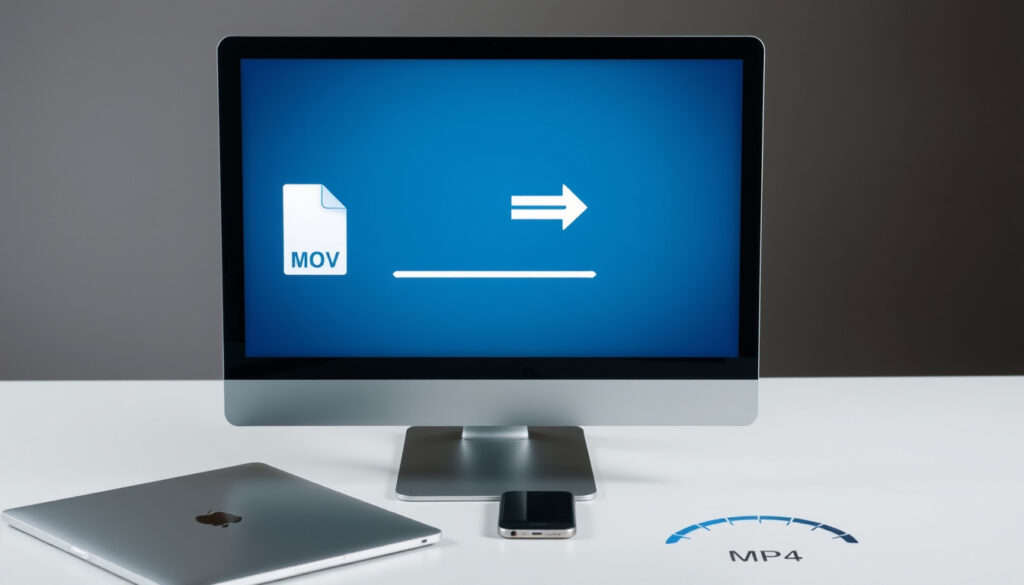
Convert MOV to MP4: Free Method for Window , Mac, and Online
Few things are more frustrating than opening a video file only to find your device or editing program won’t play it. If you’ve ever been stuck with a .MOV file from a camera or phone, converting to MP4 is usually the fastest fix — and it doesn’t have to cost a cent. We tested the most popular free converters across Windows, Mac, and online to see which ones actually deliver clean MP4 files without watermarks or hidden limits.
Free file size limit: Up to 2GB (varies by service) ·
Daily free conversions: 25 (typical limit) ·
Supported platforms: Web, Windows, macOS, iOS, Android ·
Avg conversion time (100 MB file): < 1 minute on 100 Mbps connection
Quick snapshot
- MOV is a container format developed by Apple; MP4 is a widely compatible standard (Apple support documentation).
- Free online converters like CloudConvert, FreeConvert, and Adobe Express exist (Adobe Express).
- Windows 11 includes Clipchamp for free conversion (Clipchamp).
- Mac’s QuickTime Player can export to MP4 (Apple QuickTime).
- Which free converter preserves exact original quality without re-encoding
- Daily usage limits for free tiers may change without notice
- FreeConvert’s open-source foundation ensures continuous updates (FreeConvert); HandBrake also releases regularly (HandBrake).
- Choose desktop tools for large or sensitive files; online converters are best for quick, small jobs. Adobe Express supports videos up to 1 hour for free (Adobe Express).
Five key facts, one pattern: free converters are plentiful, but each imposes some trade-off on file size, privacy, or quality.
| Fact | Value |
|---|---|
| Most common conversion issue | File size exceeding free limits |
| Typical free file size limit | 1–2 GB |
| Number of free daily conversions (cloud) | 25 (common) |
| Best free desktop tool (popularity) | HandBrake |
| Best free online tool (tested) | CloudConvert (quality/speed) |
How to Convert MOV to MP4 Online
Using CloudConvert or FreeConvert
- Visit FreeConvert or CloudConvert.
- Upload your MOV file (drag and drop or browse).
- Select MP4 as the output format, then click Convert.
- Download the converted MP4. Both services claim no watermark and offer batch conversion.
What this means: you can convert a MOV file in under a minute without installing anything, but you’re uploading your video to a third-party server.
Using Adobe Express
- Go to Adobe Express (Adobe’s free media tool).
- Upload your MOV file – it auto-converts to MP4.
- Preview or keep editing, then download. Adobe Express handles videos up to 1 hour for free.
The implication: Adobe Express gives you a polished interface and zero learning curve, but you need an Adobe account.
Using Canva
- Open Canva (graphic design platform with video tools).
- Upload your MOV file, then edit or trim if desired.
- Download as MP4. Canva works on both desktop and mobile.
The catch: Canva requires a free account and its free tier limits export resolution on some video types.
Is Converting MOV to MP4 Free?
Free vs. paid conversion options
- Online services: CapCut, Wondershare UniConverter, HappyScribe, Adobe Express, and Canva all offer free tiers with no watermark.
- Desktop apps like HandBrake and VLC Media Player are completely free with no limits.
Why this matters: for occasional conversions, free tools are more than enough. Heavy users may hit daily limits – 25 per day is a common cap for cloud services.
Watermarks and trial limitations
- CapCut specifically says exports can be made without a watermark.
- Wondershare also claims its online converter outputs have no watermark.
- HappyScribe states no watermarks are added.
- Desktop tools like HandBrake and VLC never add watermarks.
The pattern: every tool in this roundup either explicitly advertises no watermark or is open-source, so you can convert without branding.
How to Convert MOV to MP4 on Windows 11 Free
Using the built-in Clipchamp app
- Open the Clipchamp app (pre-installed on Windows 11, also at Clipchamp).
- Import your MOV file, then export as MP4. It’s free and doesn’t require a subscription for basic conversions.
- Clipchamp supports up to 1080p exports on the free tier.
The upshot: the simplest zero-install method for Windows 11 users, though the free tier limits export resolution.
Using VLC Media Player
- Open VLC (free multimedia player with conversion abilities).
- Go to Media > Convert / Save, add your MOV file, choose the MP4 preset, and start conversion.
- VLC supports batch conversion – you can queue several files at once.
What this means: VLC is a one-stop tool for playback plus conversion, and it’s completely free with no file size limits.
Using HandBrake
- Download HandBrake (open-source video transcoder).
- Open the app, select your MOV file, choose MP4 as the container, and under the Video tab choose a codec (H.264 or H.265).
- HandBrake gives you granular control over quality, resolution, and file size – ideal when you need to balance size and fidelity.
The trade-off: HandBrake’s many options can be intimidating for beginners, but it delivers the best quality retention.
How to Convert MOV to MP4 on Mac
Using QuickTime Player
- Open your MOV file in QuickTime Player (Apple’s built-in media player).
- Go to File > Export As > 1080p, 720p, or 480p (these create MP4 files).
- The export is free and doesn’t require any additional software.
The implication: QuickTime is already on every Mac, so it’s the easiest option for a simple, no-config conversion.
Using iMovie
- Import your MOV into iMovie (Apple’s free video editor).
- After any edits, go to File > Share > File, and select MP4 as the format with a quality preset.
- iMovie gives you more creative control than QuickTime while still being free.
Why this matters: iMovie lets you trim, combine, or add transitions before exporting, all without spending money.
Using HandBrake
- Same process as on Windows – HandBrake (open-source, cross-platform) works identically on macOS.
- It supports batch processing and fine-tuned codec settings for advanced users.
The pattern: for Mac users who need regular conversions with quality control, HandBrake is the most powerful free option.
What Is the Best Free MOV to MP4 Converter?
Comparing CloudConvert, FreeConvert, and Adobe Express
- CloudConvert lets you adjust video resolution before conversion.
- FreeConvert offers batch processing and is built on an open-source foundation.
- Adobe Express is backed by a major company but requires an account; it handles videos up to 1 hour.
The catch: each has a different limit – CloudConvert is generous but slower on free tier; FreeConvert excels at batch; Adobe Express is most user-friendly.
Factors: speed, quality, file size limit, privacy
- Speed: online converters depend on your upload speed; desktop tools process locally and are much faster for large files.
- Quality: HandBrake and VLC let you choose codec and bitrate to preserve original quality; online tools may re-encode at a fixed rate.
- File size: online free tiers cap around 1–2 GB; desktop tools have no limit.
- Privacy: uploading to online servers means handing over your data – for sensitive content, use HandBrake or VLC locally.
What this means: the “best” converter is the one that matches your file size, platform, and privacy comfort level. For most people, a desktop tool like HandBrake offers the best balance of control and cost.
HandBrake is the only free converter that gives you full control over codec, quality, and file size without uploading anything. It’s the go-to for anyone who converts regularly or cares about preserving original quality.
Clarity check
Confirmed facts
- MOV is a container format developed by Apple; MP4 is a widely compatible standard (Apple support documentation).
- Free online converters like CloudConvert, FreeConvert, and Adobe Express exist (Adobe Express).
- Windows 11 includes Clipchamp for free conversion (Clipchamp).
- Mac’s QuickTime Player can export to MP4 (Apple QuickTime).
What’s unclear
- Which free converter preserves exact original quality without re-encoding
- Daily usage limits for free tiers may change without notice
“I tried Adobe Express for a 10-minute MOV file and it just wouldn’t finish. Ended up going with HandBrake – set quality to RF 18, got a perfect MP4 in 3 minutes.”
— Reddit user, r/videography
“Convert MOV to MP4 for free on desktop and mobile. No watermark, no install needed.”
— Adobe Express
“Free, secure, browser-based – convert MOV to MP4 online with no software download.”
— FreeConvert
The consensus is clear: for one-off conversions, an online tool like Adobe Express or FreeConvert works fine. For frequent or high-quality work, HandBrake is the benchmark. If you’re on Windows 11, Clipchamp is already installed; on Mac, QuickTime does the job with zero fuss.
For most users on Windows or Mac, the best free option is the built-in tool (Clipchamp or QuickTime) for occasional use, and HandBrake for frequent conversions where quality matters. For the easiest no-install solution, Adobe Express or FreeConvert work well — just watch the file size limits.
Related conversions: Convertir kg en lbs and How Many Ounces in a Cup.
capcut.com, videoconverter.wondershare.com, happyscribe.com, canva.com, youtube.com
For a detailed walkthrough, check out this guide to converting MOV to MP4 that covers Windows, Mac, and online options.
Frequently asked questions
Can I convert MOV to MP4 on iPhone without a third‑party app?
Yes – the iOS Files app can export MOV files as MP4 in some cases, but for full control you may need a free app like Video Converter.
Does converting MOV to MP4 reduce video quality?
Not if you use a codec like H.264 at a high bitrate. Tools like HandBrake let you set constant quality (RF 18-22) to preserve original fidelity.
What is the difference between MOV and MP4 formats?
MOV is Apple’s container format, often used with ProRes codecs; MP4 is a universal standard that plays on almost any device. Both can hold the same video codec, so conversion often involves just re-wrapping.
How do I convert MOV to MP4 in bulk?
Use VLC’s batch conversion feature or HandBrake’s queue system. FreeConvert also offers batch processing online.
Is HandBrake safe to use for conversion?
Yes – HandBrake is open-source and widely trusted. Download only from the official site handbrake.fr to avoid malware.
Can I convert MOV to MP4 on Android for free?
Yes – apps like Media Converter on the Play Store offer free conversion, though they may show ads or add a tiny watermark in the free tier.
What file size can I upload to free online converters?
Most free online converters cap files at 1–2 GB. Adobe Express limits to 1-hour videos, which is roughly 1–2 GB depending on bitrate.
Do I need an internet connection to convert MOV to MP4 offline?
No – desktop tools like HandBrake, VLC, Clipchamp, QuickTime, and iMovie all work fully offline once installed.
More related posts
 YouTube 20.12.46 arm64-v8a APK Download & Install (Android 8.0+)
 Insurance Council of BC – Regulation and Compliance Guide
 Galaxy M21 to Buy: Price, Specs & Should You in 2025
 Income Support Payment Dates – Full Centrelink Schedule
 Old Navy Promo Code Canada: 30% Off April 2026 Coupons
 Jonas Vingegaard: Biography, Name Change, and 2026 Giro Win
 Rick Celebrini: Soccer Pro to Warriors Sports Medicine Chief
 70 Degrees Fahrenheit to Celsius: Exact Conversion Guide